How to Fix IDM Keeps Crashing on Windows 11?

Internet Download Manager (IDM) is widely used for accelerating downloads, capturing online videos, and managing large files efficiently. Despite its popularity, many users upgrading to Windows 11 have encountered a frustrating problem: IDM keeps crashing unexpectedly. The software may close without warning, freeze while downloading, fail to detect videos, or refuse to launch altogether.
These crashes are especially disruptive for users who download large videos, image galleries, or multiple files daily. Windows 11 introduces new system security policies, driver requirements, and browser updates that can easily break older or misconfigured software like IDM.
The good news is that most IDM crashing issues on Windows 11 can be fixed with proper troubleshooting. In this guide, we’ll explain why IDM keeps crashing on Windows 11, provide step-by-step solutions to fix it, and introduce a stable, modern IDM alternative for users who want a smoother downloading experience.
1. Why IDM Keeps Crashing on Windows 11?
IDM crashes usually happen due to compatibility or configuration problems. Here are the most common reasons, summarized in a short list:
- Outdated IDM version incompatible with Windows 11
- Conflicts with browser extensions or updated browsers
- Corrupted IDM installation files
- Windows Defender or antivirus blocking IDM processes
- Missing administrator permissions
- Compatibility issues with Windows 11 system changes
Understanding these causes will help you choose the most effective fix.
2. How to Fix IDM Keeps Crashing on Windows 11?
Below are proven solutions to stop IDM from crashing on Windows 11. Follow them in order for the best results.
2.1 Update IDM to the Latest Version
Using an outdated version of IDM is the most common cause of crashes on Windows 11.
Steps:
- Open ID > Click Help > Check for Updates
- Download and install the latest versio, then restart your computer and try IDM again.

Newer versions include important bug fixes and Windows 11 compatibility improvements.
2.2 Run IDM as Administrator
Without proper permissions, IDM may crash when intercepting downloads.
Steps:
- Right-click the IDM shortcut > Select Run as administrator
- To make it permanent, go to Properties > Compatibility
- Enable Run this program as an administrator

2.3 Reinstall IDM Cleanly
Corrupted program files often cause frequent crashes.
Steps:
- Uninstall IDM from Settings > Apps, then restart your PC
- Download the latest IDM installer, reinstall IDM and reboot again

A clean reinstall removes damaged or missing files.
2.4 Disable Conflicting Browser Extensions
Other download managers or video-related extensions may conflict with IDM.
Steps:
- Open your browser’s extension settings
- Disable all download-related extensions
- Restart your browser
- Test IDM

You can re-enable extensions one by one to identify the problematic one.
2.5 Update IDM Browser Integration
If IDM crashes while detecting videos, browser integration may be outdated.
Steps:
- Open IDM > Go to Options > General
- Make sure your browser is checked
- Click Update IDM integration

Also update your browser (Chrome, Edge, Firefox) to the latest version.
2.6 Add IDM to Antivirus Exclusions
Windows Defender or third-party antivirus software may block IDM processes.
Steps (Windows Defender):
- Open Windows Security
- Go to Virus & threat protection
- Click Manage settings
- Add IDM’s installation folder to Exclusions

This prevents security tools from interfering with IDM.
2.7 Use Compatibility Mode
Running IDM in compatibility mode can reduce Windows 11 conflicts.
Steps:
- Right-click the IDM shortcut
- Select Properties > Compatibility
- Enable Run this program in compatibility mode
- Choose Windows 10
- Apply and restart IDM

2.8 Update Windows and Drivers
System or driver issues can indirectly cause IDM crashes.
What to update:
- Windows 11 system updates
- Graphics drivers (NVIDIA, AMD, Intel)
- Network drivers

Restart your PC after updating.
2.9 Reset IDM Settings
Incorrect configurations can cause instability.
Steps:
- Open IDM > Go to Options > Reset settings to default > Restart IDM
3. Try the Best IDM Alternative to Download Videos and Images – Meget Pro
If you’re tired of troubleshooting IDM crashes on Windows 11, Meget Pro is a powerful and modern alternative built for stability and performance.
Meget Pro is designed to work seamlessly with modern Windows/Mac systems, reducing the common causes of crashes found in traditional download managers.
Key Features of Meget Pro:
- One-click video downloads from 10,000+ platforms
- Bulk image and video downloading
- Built-in browser for reliable content detection
- Fast and stable download engine
- Supports multiple formats and resolutions
- Works well on Mac and Windows (including Windows 11)
How to download videos and images on Windows 11 with Meget Pro:
- Get started by installing Meget Pro on your Windows 11.
- Open the app and browse the target website within the built-in browser to find your favorite videos or images.
- To save a video, simply play it and click the Download button—Meget Pro will automatically add it to the download queue and begin downloading.
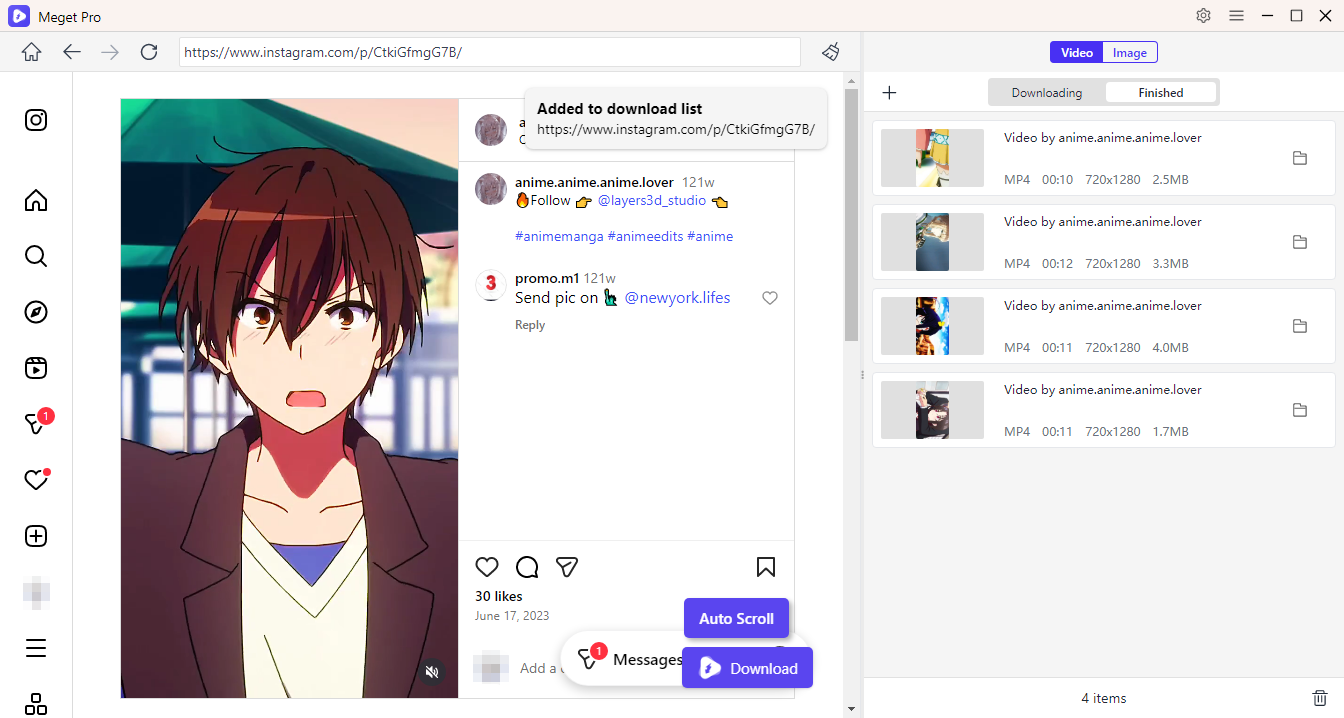
- To save photos, allow Meget Pro to scroll the page and detect original-quality images. You can then filter the detected photos and start downloading them with one click.

4. Conclusion
IDM crashing on Windows 11 is a common problem caused by compatibility issues, browser conflicts, or security restrictions. While updating, reinstalling, and adjusting system settings can fix the issue in many cases, these solutions are often temporary and time-consuming.
If you want a long-term, hassle-free solution, Meget Pro is highly recommended. With strong Windows 11 compatibility, bulk downloading capabilities, and a stable download engine, Meget Pro eliminates the frustration of repeated crashes and gives you a faster, smoother way to download videos and images.
For users who value reliability and efficiency, Meget Pro is the smarter alternative to IDM on Windows 11.