How to Use the Media Downloader Extension?

Downloading media from the internet is something many users do every day. Whether you want to save images from a website, download videos for offline viewing, or capture audio files for later listening, having the right tool can make the process much easier. While some websites provide built-in download options, many do not, which makes it difficult to save media directly from the browser.
This is where browser extensions come in. These tools automatically scan webpages for media resources and display them in a list so users can quickly save them to their devices.
One popular option is the Media Downloader, a lightweight Chrome extension designed to help users download various types of media from websites. In this guide, we’ll explain what the Media Downloader extension is, how it works, as well as compare its pros and cons.
1. What Is the Media Downloader Extension?
The Media Downloader Chrome Extension is a browser extension designed to help users browse and download media files such as images, videos, and audio directly from webpages. It integrates into the Chrome browser and automatically detects media elements on the websites you visit.
Once installed, the extension monitors the page content and lists available media files in its interface. Users can then choose which files they want to download. This eliminates the need to manually search for media URLs or inspect webpage code.
Key features of the Media Downloader Chrome extension:
- Download images, videos, and audio from websites
- Automatic media detection on webpages you visit
- Context menu integration for quick downloads via right-click
- Display media from all visited tabs in one interface
- Remember detected media when switching tabs or URLs
- Dark theme interface for better viewing in low-light environments
2. How to Use the Media Downloader Extension?
Using the Media Downloader Chrome Extension is relatively straightforward. Follow these steps to start downloading media files from websites.
- Install the extension – Add the Media Downloader extension from the Chrome Web Store to your browser.
- Open a webpage with media – Visit a website that contains images, videos, or audio files you want to download.
- Click the extension icon – Select the Media Downloader icon in your browser toolbar to scan the page.
- View detected media files – The extension will list available images, videos, or audio from the page.
- Select and download – Click the Download button next to the file you want to save.
3. Pros and Cons of the Media Downloader Extension
Like most browser extensions, the Media Downloader Chrome Extension has both advantages and limitations.
Pros:
- A simple interface that allows users to detect and download media with just a few clicks.
- It works with images, videos, and audio files.
- There’s no need to download or install separate downloader desktop software.
Cons:
- The extension provides limited file download or convert options.
- The extension may fail to extract video, audio or full-sized images.
- Some websites may block media detection or use streaming methods that the extension cannot capture.
4. Try the Ultimate Media Downloader – Meget Pro
If you need a more powerful downloading solution, Meget Pro is a much better option.
Unlike browser extensions that focus on single downloads, Meget Pro is an advanced desktop downloader designed for bulk media downloading from many websites.
Key features of Meget Pro:
- Allow users to download multiple videos, images, and audio files simultaneously.
- Work with 10,000+ platforms, including streaming websites, social media platforms, and image galleries.
- Download media in original or high-resolution quality.
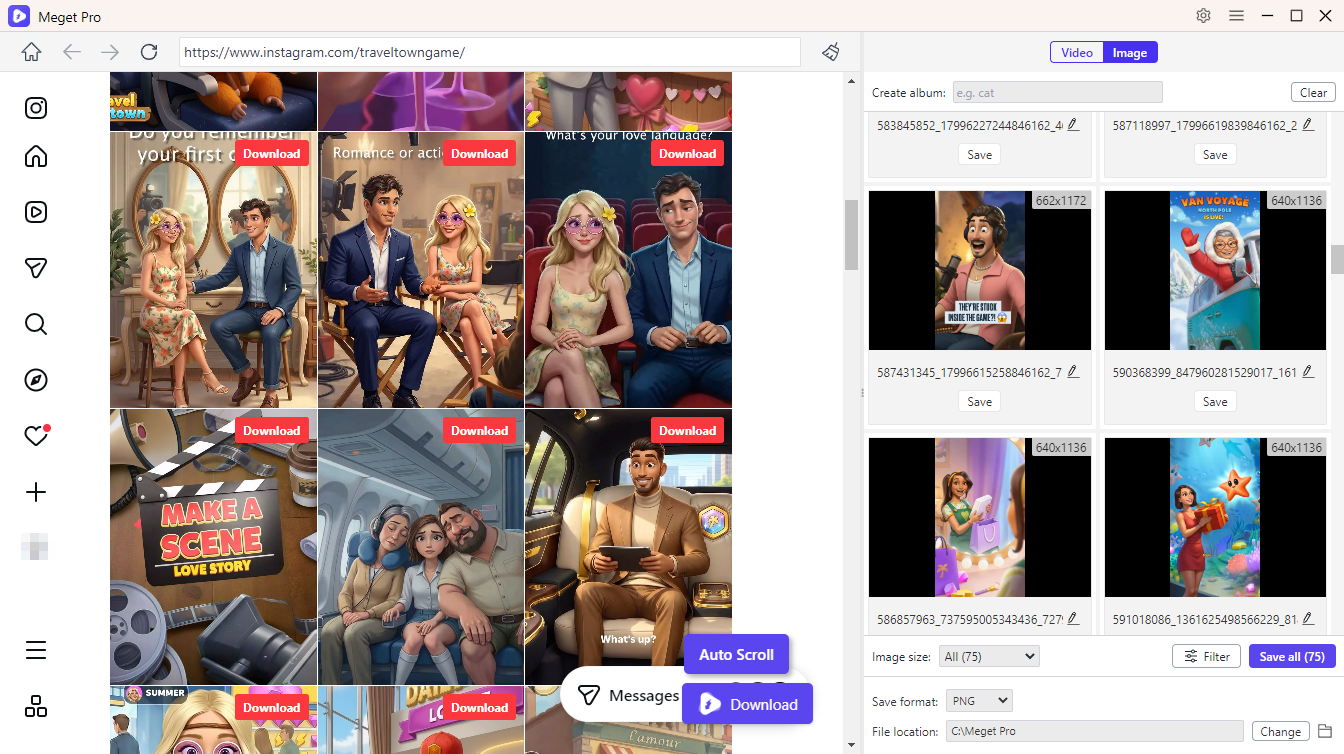
- Extract full-sized images and filter them by types and resolutions.
- Download media in MP4, MP3, PNG and more formats.
- Provide an integrated browser to access content within software.
How to download media from a page with Meget Pro:
- Install Meget Pro on your Windows PC or Mad device to get started.
- Open the application and use its built‑in browser to navigate to the site containing the media you want.
- Play the video and click Download. Meget Pro will automatically detect the media, add it to the queue, and start the download.
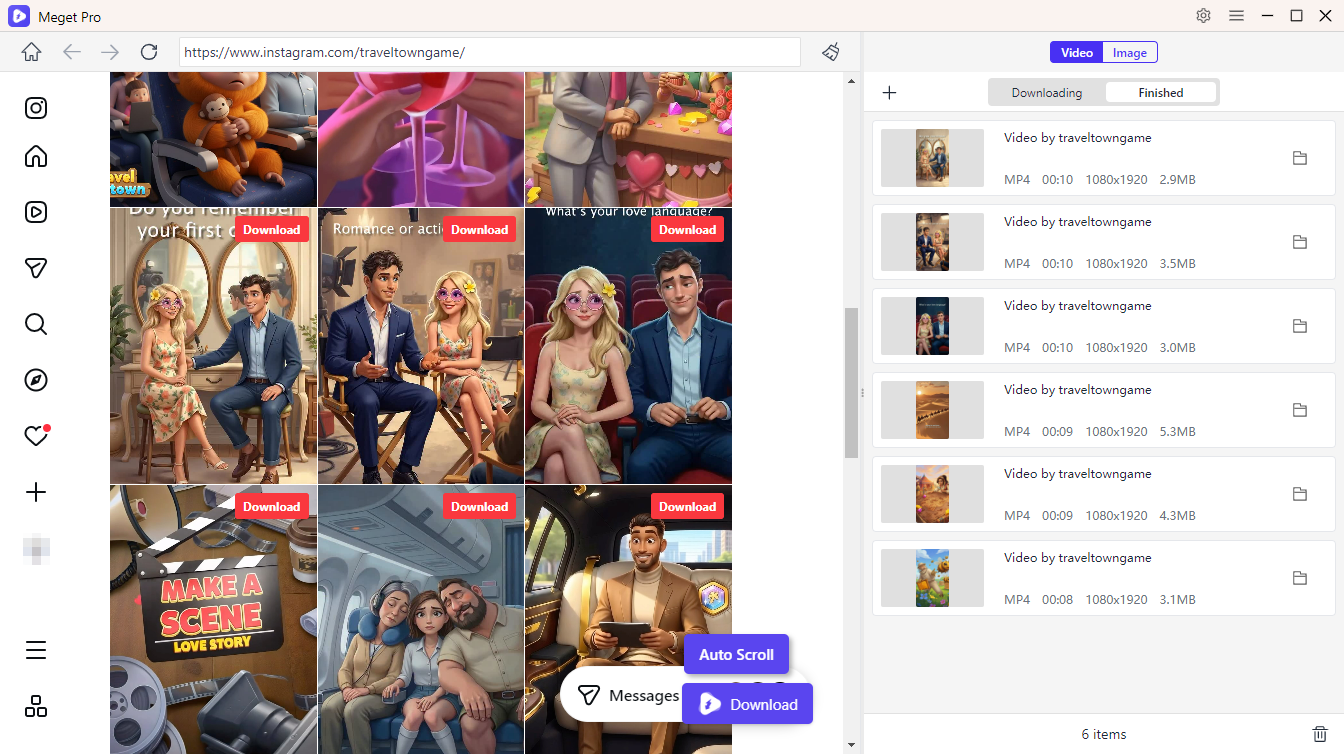
- For photo downloads, let Meget Pro automatically scroll the page to identify images in their original quality. After the scan, filter the detected photos and click once to download them.
5. Conclusion
The Media Downloader Chrome Extension is an useful tools for saving images, videos, and audio files directly from websites. With its simple interface and automatic media detection, it can help users download files without needing technical knowledge. However, the extension also comes with limitations. It may not work on all websites, often lack bulk download features, and sometimes experience stability issues.
For users who frequently download large amounts of media or need more advanced features, Meget Pro is a much more powerful alternative. With bulk downloading, faster speeds, and support for many websites, it provides a more efficient and reliable solution for managing media downloads.
If you are looking for a complete media downloading tool that goes beyond basic browser extensions, Meget Pro is highly recommended.