yt-dlp Download Audio Only Worst Audio? Fix It With These Solutions

yt-dlp is a powerful command-line tool for downloading video and audio from online platforms, offering flexible control over formats, quality, and audio extraction.
However, you may occasionally encounter a frustrating issue: yt-dlp downloads audio only in the worst quality. The downloaded audio may have a low bitrate, sound compressed, or simply fail to match the quality you expected from the original video.
Below, we’ll explain why this happens, show you how to download high-quality audio with yt-dlp, examine its pros and cons, and introduce an easier all-in-one downloader and converter for users who don’t want to work with command lines.
1. Why Does yt-dlp Download Audio Only in the Worst Quality?
Several factors can cause yt-dlp audio downloads to sound worse than expected:
- Incorrect format selection: The selected format may be a lower-quality audio stream.
- Limited source quality: yt-dlp can only download the audio quality offered by the source website.
- Unnecessary conversion: Converting one lossy format into another can introduce additional quality loss.
- Wrong command options: Certain format selectors or audio settings may produce a result different from what you expected.
- Outdated yt-dlp version: Website changes may affect how older versions detect or process available media formats.
- Missing or outdated FFmpeg: Audio extraction and conversion features often depend on FFmpeg.
- Bitrate misunderstanding: Converting low-bitrate source audio to a higher-bitrate MP3 doesn’t restore lost audio information.
2. How to Use yt-dlp to Download High-Quality Audio?
If you’re getting poor-quality audio with yt-dlp, try these methods.
1) Check All Available Audio Formats
Instead of immediately downloading the media, first check which formats are available:
yt-dlp -F "VIDEO_URL"The command displays the formats yt-dlp detects for the URL. Depending on the website, you may see format IDs, file extensions, codecs, resolutions, and audio bitrate information.
Look for the best available audio-only stream.
After finding the desired format ID, download it with:
yt-dlp -f FORMAT_ID "VIDEO_URL"Replace FORMAT_ID with the ID of the audio stream you want.
This approach gives you more control than allowing an unsuitable format to be selected.
2) Use the Best Audio Selector
For a simpler approach, tell yt-dlp to select the best available audio-only format automatically:
yt-dlp -f bestaudio "VIDEO_URL"You can also provide a fallback:
yt-dlp -f "bestaudio/best" "VIDEO_URL"Here, yt-dlp attempts to obtain the best audio-only format first and falls back to the best combined format when necessary.
3) Extract High-Quality MP3 Audio
If you specifically need MP3, use yt-dlp’s audio extraction function:
yt-dlp -x --audio-format mp3 "VIDEO_URL"You can specify the conversion quality as well:
yt-dlp -x --audio-format mp3 --audio-quality 0 "VIDEO_URL"In FFmpeg-based MP3 conversion, 0 requests the highest variable-bitrate quality setting.
However, remember that conversion cannot improve the original source. Turning low-quality audio into a high-bitrate MP3 simply creates a larger file without recovering details that were already lost.
4) Avoid Conversion When Possible
If audio quality is your main priority, consider keeping the original audio stream instead of converting it.
For example:
yt-dlp -f bestaudio "VIDEO_URL"This can preserve the original downloaded stream and avoid another lossy encoding stage.
You can then convert the file later if compatibility with a particular device or application requires another format.
5) Update yt-dlp and FFmpeg
Keep yt-dlp and FFmpeg updated to maintain compatibility and accurate format detection. After updating, run yt-dlp -F again to check the available formats.
3. Pros and Cons of Using yt-dlp
yt-dlp is extremely capable, but it isn’t necessarily the ideal downloader for every user.
Pros:
- Free and open source.
- Supports many websites.
- Offers detailed video and audio format selection.
- Supports audio extraction.
- Works with FFmpeg for media processing and conversion.
- Supports playlists and batch downloads.
- Provides extensive customization through command-line options.
- Suitable for scripts and automated downloading workflows.
Cons:
- Command-line operation can be difficult for beginners.
- Users need to learn different parameters and format selectors.
- Advanced media processing may require FFmpeg.
- Choosing the wrong format can produce unexpected results.
- Some website changes can temporarily affect compatibility.
- Frequent downloads may involve repetitive commands.
- No built-in graphical interface.
4. Download and Convert with Meget Instead of yt-dlp
If yt-dlp feels too complicated or keeps giving you unexpected audio formats, Meget offers a more user-friendly alternative.
Meget is an all-in-one downloader and converter designed to simplify downloading online videos and audio from 10,000+ websites. Instead of entering terminal commands and manually choosing format IDs, users can manage downloading and conversion through a graphical interface.
How to use Meget to download audio with the best quality:
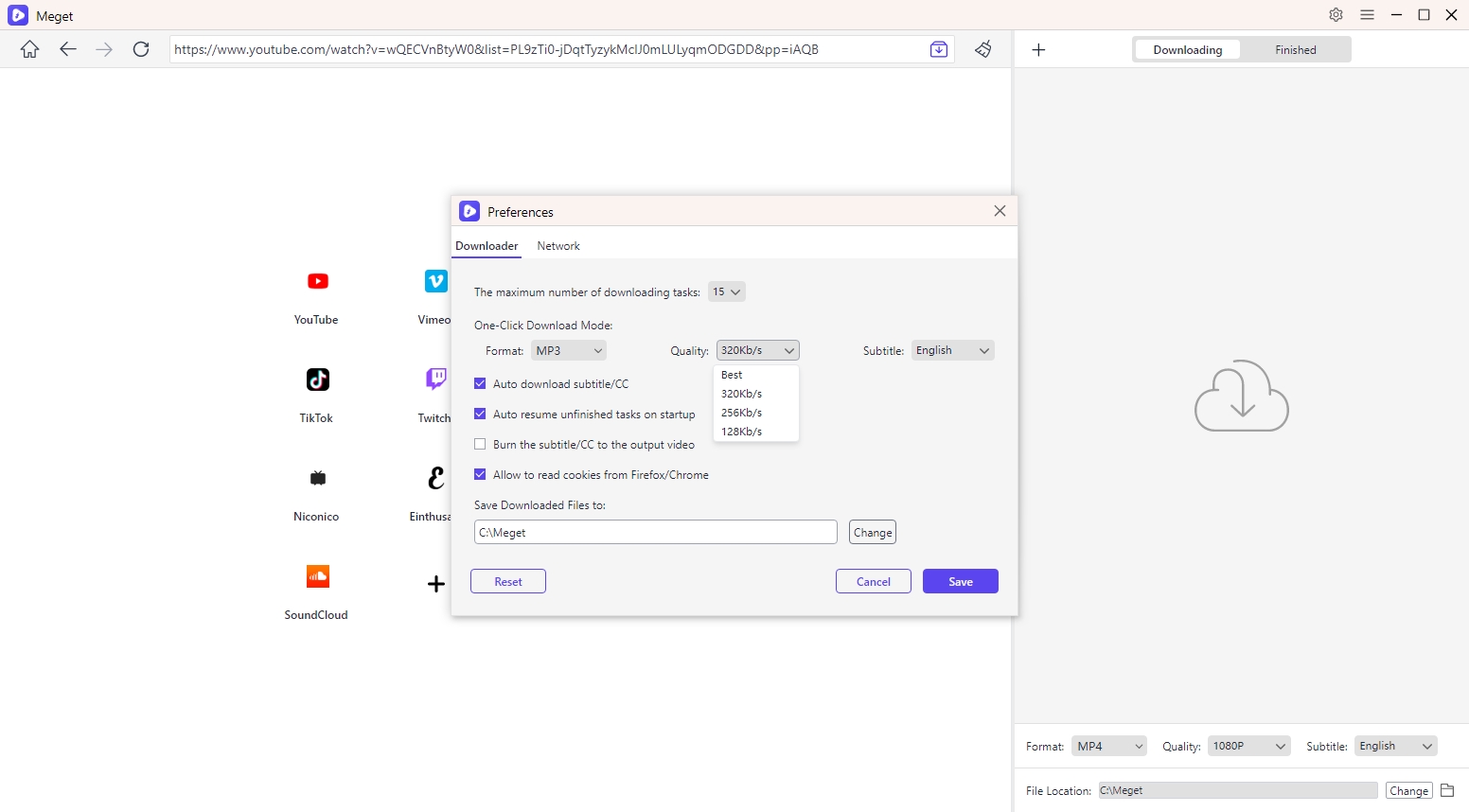
- Download, install, and open Meget on your computer, then go to settings, select your preferred audio format, and choose best quality.
- Use Meget’s built-in browser to visit the page containing the video or audio you want to save.
- Play the media, let Meget detect it, and click the download button to save the audio using your selected settings.
- Once finished, find the downloaded file in the “Finished” section and enjoy it offline.
5. Conclusion
yt-dlp is a powerful tool for downloading high-quality audio, especially for users who are comfortable with command-line options. However, choosing formats, adjusting commands, and handling conversions can make the process complicated for beginners.
If you prefer a simpler solution, Meget is a great alternative to yt-dlp. It provides an intuitive interface for downloading high-quality video and audio, choosing output formats, converting media, and handling multiple downloads. With fewer technical steps involved, Meget makes it easier to save audio in the best available quality for offline listening.
- Do DRM Video Downloader Extensions Really Work? Try These Alternative Tools
- How to Fix 4K Video Downloader Error Code 152-18?
- Best Video Downloader CocoCut Alternatives That You Should Try
- How to Download from Movies2Watch?
- GenYouTube Overview: A Complete Guide to Its Features and Usage
- Tuberipper Review: Is It Worth Using?
- Do DRM Video Downloader Extensions Really Work? Try These Alternative Tools
- How to Fix 4K Video Downloader Error Code 152-18?
- Best Video Downloader CocoCut Alternatives That You Should Try
- How to Download from Movies2Watch?
- GenYouTube Overview: A Complete Guide to Its Features and Usage
- Tuberipper Review: Is It Worth Using?