How to Fix 4K Video Downloader Error Code 152-18?

If 4K Video Downloader suddenly shows error code 152-18 when you try to download a YouTube video, you are not alone. This error can occur when YouTube changes its anti-bot protection or backend systems, making it difficult for the downloader to process the video URL.
In this guide, we’ll explain what causes error 152-18 and share several practical fixes, and provide a more convenient alternative for downloading and converting online videos.

1. What Does 4K Video Downloader Error Code 152-18 Mean?
Error code 152-18 usually appears when 4K Video Downloader cannot properly parse or access a YouTube video. The issue is mainly related to changes in YouTube’s backend, anti-bot protections, signature systems, or token validation, which can prevent third-party downloaders from processing video requests correctly.
The error may also be affected by your YouTube account or IP address, especially if YouTube detects frequent automated requests. In most cases, the problem is not with the video itself, but with the way 4K Video Downloader communicates with YouTube.
2. How to Fix 4K Video Downloader Error Code 152-18?
2.1 Log Out of YouTube Inside the App
One of the quickest workarounds is to log out of your YouTube or Google account inside 4K Video Downloader.
In some cases, the error appears to be associated with stricter restrictions applied to authenticated requests. Logging out can allow the application to process standard public video links without using the problematic account authorization.
Steps:
- Open 4K Video Downloader on your computer.
- Open Tools, and find the Authorization section.
- Log out of your YouTube or Google account, then close and restart the application.
- Copy a public YouTube video URL and paste it into the downloader.
- Check whether the video can now be parsed.
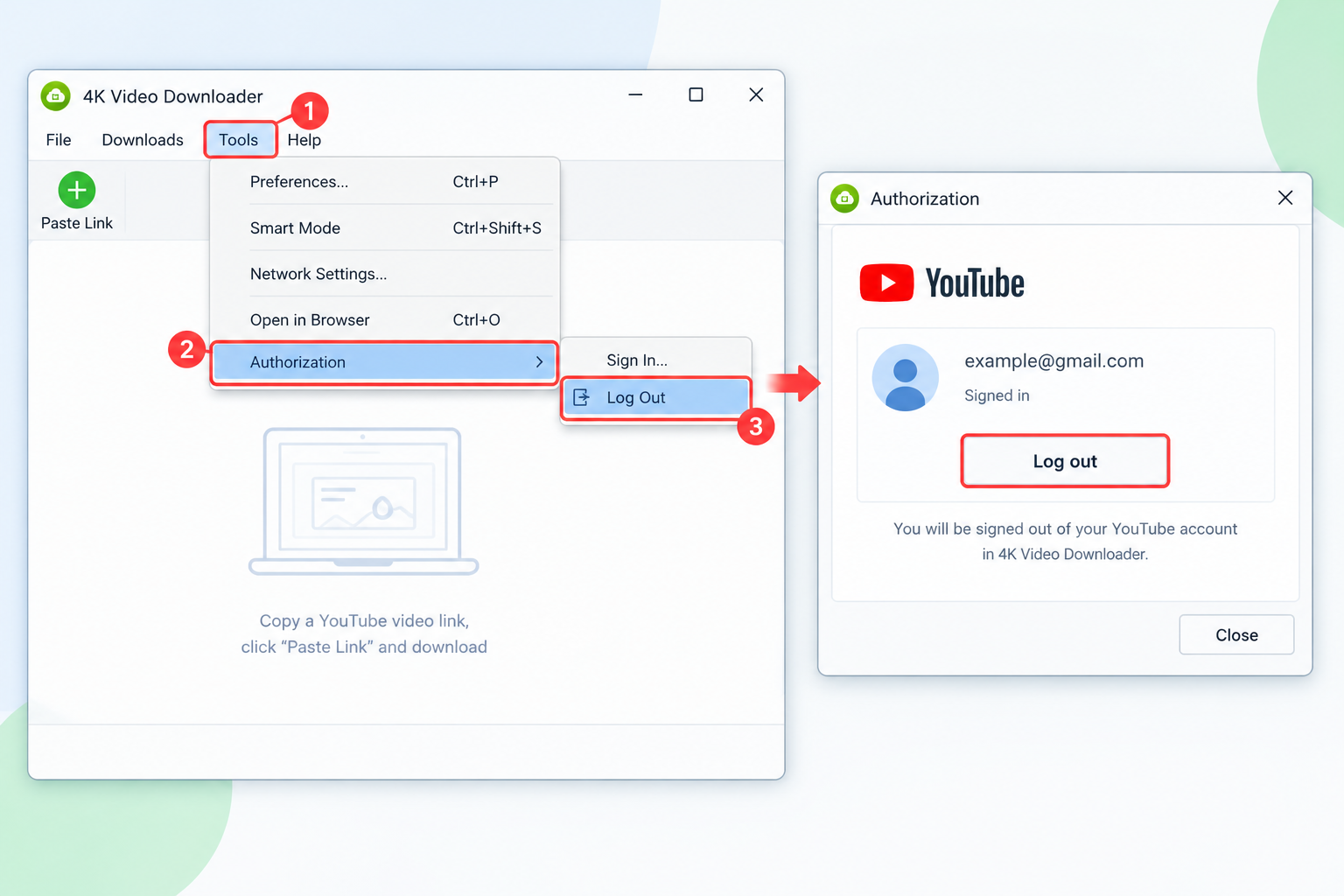
This workaround is mainly useful for public videos. After logging out, you may temporarily lose access to certain private or age-restricted content that requires account authorization.
If the problem is caused by a backend change rather than your account, you may need to wait for a software update that permanently addresses the compatibility issue.
2.2 Update 4K Video Downloader to the Latest Version
YouTube frequently changes its backend systems, so keeping 4K Video Downloader updated is important.
When YouTube changes its JavaScript, signatures, or token validation mechanisms, the developers of third-party downloaders may need to release a new version to restore compatibility.
Follow these steps:
- Open 4K Video Downloader, go to the application menu and select Help > Check for Updates.
- Install any available update and restart the application.
- Try downloading the YouTube video again.
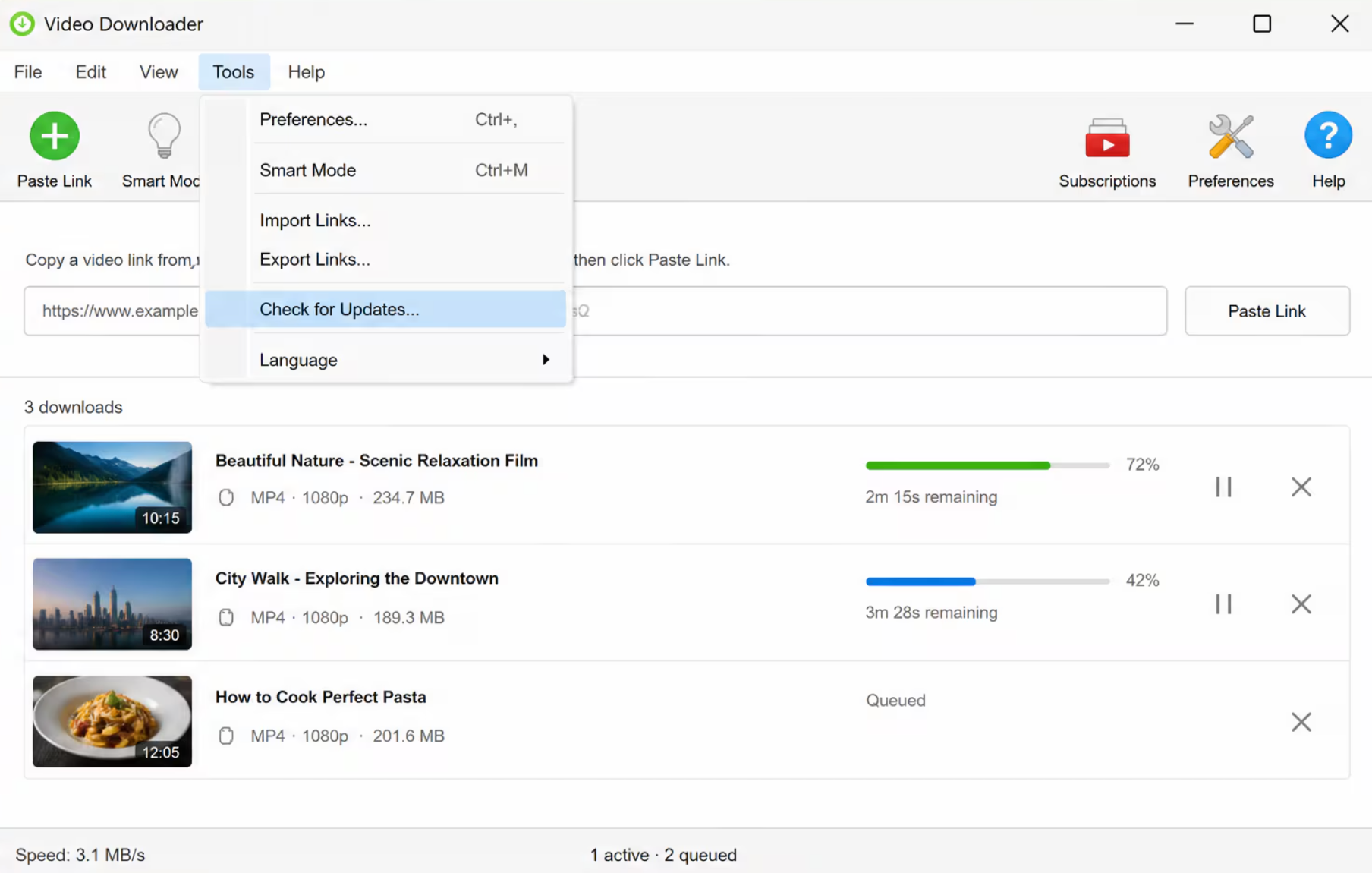
If the built-in updater does not detect a newer version but error 152-18 continues to appear, visit the official 4K Download website and download the latest installer. Installing the latest version over the existing installation can sometimes resolve compatibility problems.
Keeping the application updated is particularly important when an error suddenly starts affecting multiple YouTube videos.
2.3 Change Your IP or Network
Another possible cause is your current network or IP address. If YouTube’s systems detect a high number of automated requests from an IP address, they may apply additional restrictions.
Changing your network can help determine whether the problem is related to your current IP.
If you already use a VPN, try disconnecting and reconnecting it or switching to another server. If you do not use a VPN, you can temporarily connect your computer to a mobile hotspot and test the same video.
Try these steps:
- Close 4K Video Downloader.
- Disconnect from your current network.
- Connect through another network or a mobile hotspot.
- Reopen 4K Video Downloader.
- Paste the YouTube URL again and check whether the video can be parsed.
If the video works on another network, the issue may be related to your original IP or network environment.
However, changing networks is not guaranteed to fix the problem. If YouTube has changed its backend requirements, the downloader may still need a software update.
2.4 Clear the App Cache and Temporary Data
Corrupted temporary files, cookies, or application settings can sometimes leave 4K Video Downloader stuck in an error state.
Clearing the application’s temporary data can give the software a clean start.
First, completely close 4K Video Downloader. Make sure the application is not still running in the background. You can then clear relevant temporary application data or perform a clean reinstall.
A clean reinstall can be particularly useful if updating the software does not resolve the problem.
Steps:
- Close 4K Video Downloader completely.
- Remove the existing application if necessary.
- Clear its temporary or local application data.
- Download the latest version from the official source.
- Install the software again.
- Restart your computer if necessary.
- Try parsing the YouTube URL again.
Before deleting application data, make sure you understand which folders contain the application’s settings so you do not accidentally remove unrelated files.
3. Try the Best Alternative to 4K Video Downloader – Meget
If you have tried the solutions above and error code 152-18 continues to appear, switching to another downloader can be a practical option.
Meget is a desktop-based video downloader and converter that provides another way to download online videos. Instead of repeatedly troubleshooting compatibility problems in 4K Video Downloader, you can try Meget to see whether it can successfully process the video you need.
How to use Meget to save YT videos:
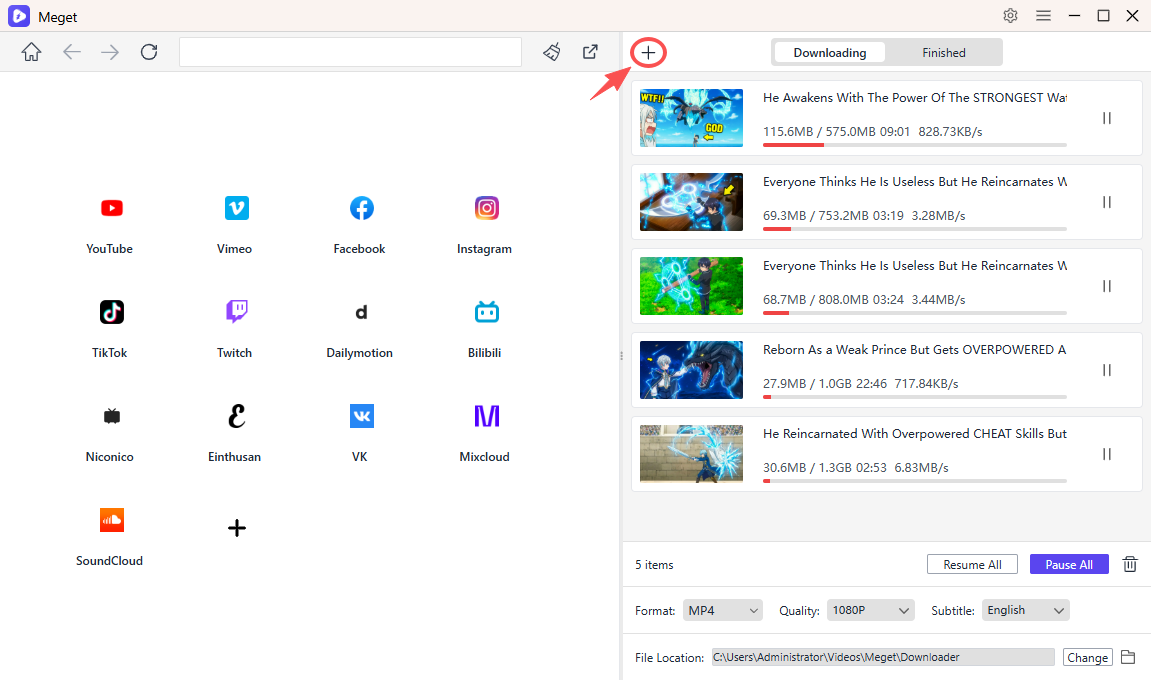
- Download Meget for Windows or Mac, launch the application, and choose the desired quality and file format.
- Copy the YT video links that you want to download, then paste them into Meget, click the download button.
- Wait for Meget to analyze the links and start downloading all the videos.
- When the process is finished, find the downloaded files under the software “Finished” folder.
4. Conclusion
4K Video Downloader error code 152-18 is mainly caused by changes to YouTube’s anti-bot and backend systems. Try logging out, updating the app, changing your network, or clearing app data. If the error persists, Meget is a convenient alternative for downloading and converting online videos.