How to Fix 4K Video Downloader Can’t Find Valid Format?

4K Video Downloader is a popular tool for downloading videos from various online platforms. It can be useful when you want to save online videos for offline viewing, but like other third-party downloaders, it may occasionally run into compatibility problems. One of the most common errors users face is the “Can’t find valid format” error.
The good news is that this error can usually be resolved with a few easy fixes. In this guide, we’ll explain the common reasons behind the “Can’t find valid format” error and walk you through several solutions.

1. Why 4K Video Downloader Can’t Find Valid Format?
Several factors can cause 4K Video Downloader to fail when detecting available video formats:
- Outdated application: A new update to the source website may make an older downloader version incompatible.
- Unsupported website or video: The particular platform, video type, or streaming method may not be supported.
- Incorrect URL: The link may be incomplete, invalid, expired, or redirected.
- Private or restricted content: Login requirements, privacy settings, age restrictions, or regional limitations can interfere with access.
- Network issues: An unstable internet connection may prevent the software from retrieving video information.
- Platform changes: Changes to a website’s player, streaming protocol, or content delivery system can temporarily affect downloaders.
- Security software: Firewalls, antivirus programs, VPNs, or proxy settings may interfere with connections.
- Unavailable format: The video may not provide the requested quality or format in a way the application can recognize.
2. How to Fix 4K Video Downloader Can’t Find Valid Format?
2.1 Update 4K Video Downloader
First, check whether you’re using the latest version of 4K Video Downloader. Video websites frequently change their technical systems, and older versions may no longer recognize newly delivered content. Install any available updates, restart the application, and try pasting the video URL again.
2.2 Copy the Video URL Again
A bad or incomplete URL can cause format detection to fail. Open the video in your browser and make sure it plays normally. Then copy the URL directly from the address bar and paste it into 4K Video Downloader. If you copied the link from another source, getting a fresh URL can sometimes solve the problem immediately.
2.3 Check Whether the Video Is Restricted
Make sure you can access the video normally through your browser. Private videos, login-required content, age-restricted material, and region-restricted videos may not be available to third-party downloaders. If the video requires special authorization, use the platform’s supported options where available.
2.4 Check Your Internet Connection
A weak or unstable connection can interfere with 4K Video Downloader’s communication with the source website, so try restarting your router, switching to a more reliable network, pausing bandwidth-heavy activities, or temporarily disabling your VPN or proxy.
2.5 Restart the Downloader
Temporary application glitches can sometimes cause format detection to fail, so try completely closing and reopening 4K Video Downloader, pasting the URL into a new session, and restarting your computer if the issue persists.
2.6 Check Firewall and Antivirus Settings
Your firewall or antivirus software may prevent 4K Video Downloader from connecting to the source website. Check your security settings and see whether the application has been blocked. If necessary, create an appropriate exception for the trusted application instead of leaving your security software disabled.
2.7 Reinstall 4K Video Downloader
If the previous solutions don’t work, try reinstalling the program. Uninstall the existing version and install a fresh, current version from a legitimate source. This can eliminate corrupted installation files or problematic settings that may be interfering with format detection.
3. Looking for an Alternative? Try Meget Video Downloader
If 4K Video Downloader continues to display “Can’t find valid format,” switching to another tool can be a simpler solution. Meget is a video downloader and converter designed to provide a more flexible way to download online videos and convert them into commonly used formats.
Main Features of Meget:
- Download online videos from 10,000+ supported websites.
- Process multiple video URLs instead of downloading them one at a time.
- Choose from available video resolutions (Up to 8K).
- Convert downloaded videos into different formats like MP4.
- Work on Windows, Mac and Android.
How to Use Meget:
- Visit the Meget website, download the appropriate version, and install it on your Windows or Mac computer.
- Launch Meget to select your preferred video format, quality, subtitles, and save location.
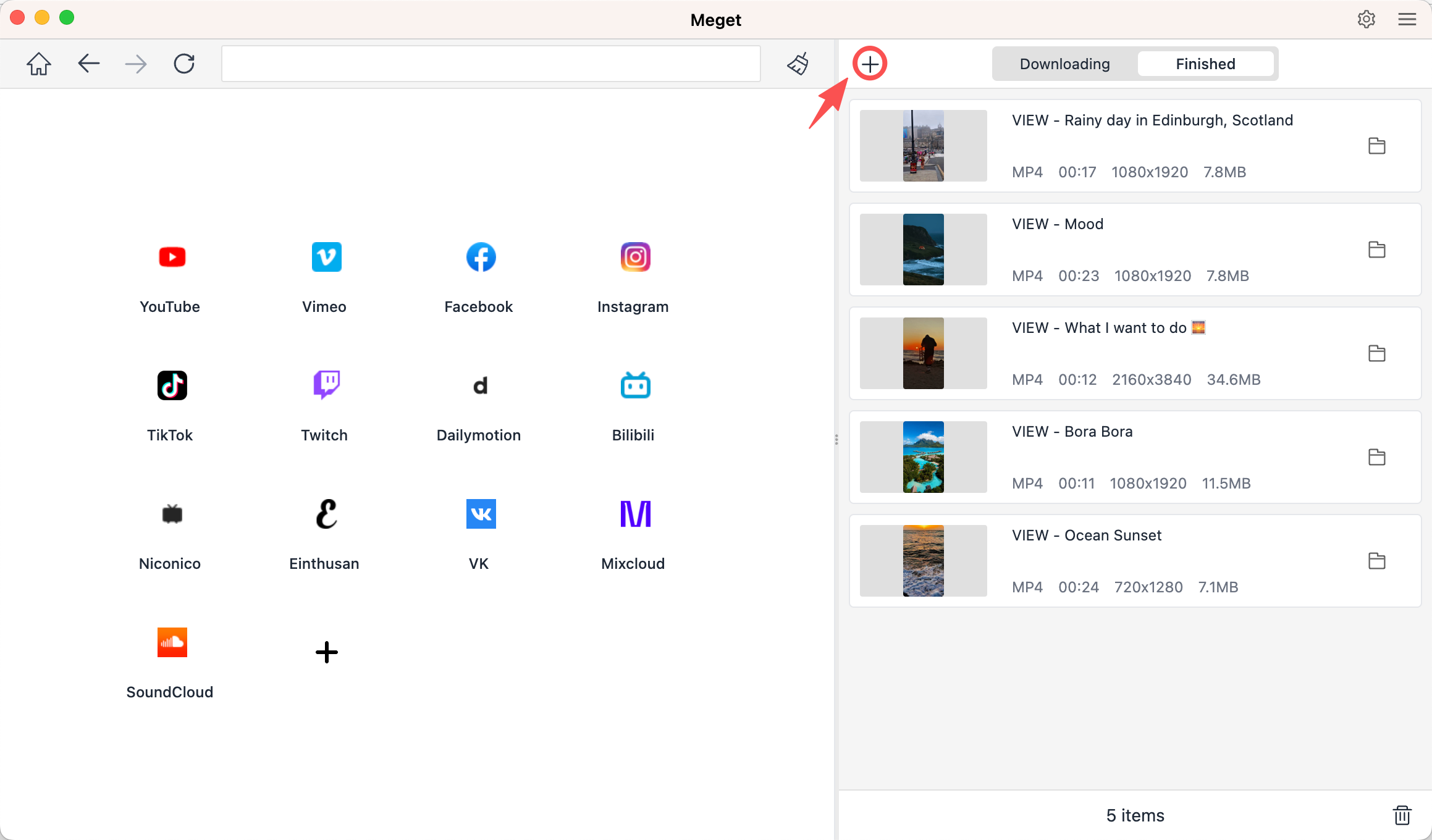
- Open the videos you want to download and copy the URLs, then return to Meget and click “Paste URL(s) to Download” to add the videos.
- Meget will start all the downloading tasks, and you can minitor and manage them on the software interface.
4. Conclusion
The “Can’t find valid format” error in 4K Video Downloader can be caused by several issues, including outdated software, incorrect URLs, restricted videos, network problems, security settings, or changes to the source platform. Fortunately, updating, restarting, reinstalling the application, and checking your connection can often help resolve the problem.
However, if 4K Video Downloader continues to fail, switching to a more reliable alternative may save you time and frustration. Meget offers support for 10,000+ websites, batch downloading, resolutions up to 8K, video conversion, and compatibility with Windows, Mac, and Android. If you’re looking for a flexible and convenient way to download and convert online videos, Meget is well worth trying.
- Do DRM Video Downloader Extensions Really Work? Try These Alternative Tools
- How to Fix 4K Video Downloader Error Code 152-18?
- Best Video Downloader CocoCut Alternatives That You Should Try
- How to Download from Movies2Watch?
- GenYouTube Overview: A Complete Guide to Its Features and Usage
- Tuberipper Review: Is It Worth Using?
- Do DRM Video Downloader Extensions Really Work? Try These Alternative Tools
- How to Fix 4K Video Downloader Error Code 152-18?
- Best Video Downloader CocoCut Alternatives That You Should Try
- How to Download from Movies2Watch?
- GenYouTube Overview: A Complete Guide to Its Features and Usage
- Tuberipper Review: Is It Worth Using?