GenYouTube Overview: A Complete Guide to Its Features and Usage

YouTube has become one of the largest platforms for watching music videos, tutorials, educational content, interviews, podcasts, and entertainment. While streaming works well when you have a stable internet connection, there are situations where downloading a video for offline viewing can be more convenient.
GenYouTube is one of the online tools designed to make YouTube video downloading easier. In this guide, we’ll take a closer look at what GenYouTube is, how to use it, how its extension works, and its main advantages and disadvantages.
1. What Is GenYouTube?
GenYouTube is an online YouTube downloader that allows users to download videos by providing a YouTube URL. Rather than relying entirely on YouTube’s built-in streaming experience, the service is designed to help users save online videos to their devices for offline access.
2. How to Use GenYouTube to Download YouTube Videos Online
One of the main attractions of GenYouTube is its relatively simple workflow. Although the exact interface may change over time, the typical process involves the following steps:
- Open YouTube in your browser, find the video you want to save and copy the video’s URL.
- Go to the GenYouTube website using a supported web browser, then locate the input field and paste the copied YouTube URL into the designated field.
- Click “Go” and the service should process the link and identify the available download options.
- After the video is analyzed, check the available formats and quality options.
- Click the relevant download button and wait for the process to finish.

3. How to Use the GenYouTube Extension?
A browser extension can provide a more convenient way to access downloading functions without repeatedly opening the main GenYouTube website.
Steps:
- Install Tampermonkey – Open Google Chrome and install the Tampermonkey extension from the Chrome Web Store.
- Install the GenYouTube script – Visit the GenYouTube extension page and add the GenYouTube download script to Tampermonkey.
- Open YouTube – Go to YouTube and find the video you want to download.
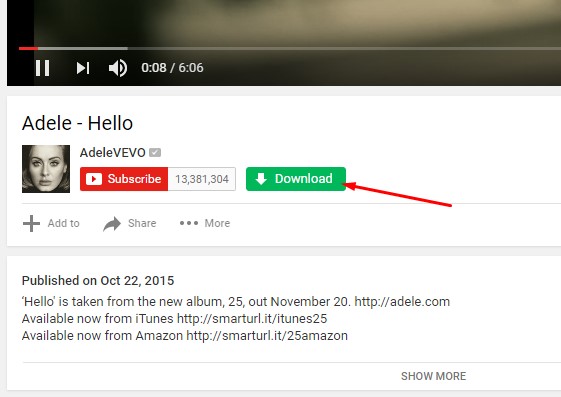
- Click the Download option – Once the script is active, a GenYouTube download button/widget should appear on the YouTube video page.
- Choose a format – Click the download button and select an available video or audio format and quality.
- Download the video – Select the desired option to start downloading the video to your computer.
4. Pros and Cons of GenYouTube
Like other online YouTube downloaders, GenYouTube has both strengths and limitations.
Pros
- Easy to use: The URL-based downloading process is straightforward.
- No complex setup: Users can access the online service through a browser.
- Convenient for occasional downloads: It can be useful when you only need to save a few videos.
- Browser-based access: There is no need to install a large desktop application for basic use.
- Extension support: A browser extension can make the downloading workflow more convenient when available.
Cons
- Limited advanced features: Online downloaders may not provide the extensive options available in dedicated desktop software.
- Internet-dependent: The service requires an internet connection to process and download videos.
- Format and quality limitations: Available output options may vary depending on the video and service.
- Browser compatibility: Extension functionality can change as browsers and websites are updated.
- Potential advertisements: Some free online downloading services may display ads or redirects.
- Limited batch downloading: Downloading many videos individually can be time-consuming.
For users who only occasionally save a YouTube video, these limitations may not be a major issue. However, people who frequently download videos, work with multiple URLs, or need conversion features may benefit from a more capable desktop solution.
5. Try the Ultimate Video Downloader & Converter – Meget Instead
If you want more than a basic online downloader, Meget is worth considering. It is a desktop video downloader and converter designed for users who need greater control over their downloads and media files.
Unlike a browser-based tool that focuses primarily on individual URL downloads, Meget provides a broader set of downloading and conversion functions in a dedicated application.
Key features of Meget:
- Batch downloading: Grab multiple videos or complete playlists from more than 10,000 supported websites.
- Up to 8K quality: Download videos in resolutions as high as 8K when the source supports it.
- Flexible conversion: Convert downloaded videos and audio to popular formats, including MP4 and MP3.
- Audio extraction: Save audio tracks from videos either together with the video or as standalone files.
- Custom download settings: Adjust formats, video quality, subtitles, save location, and other preferences.
- Built-in media discovery: Search for and download online videos directly from within the application.
How to Download Videos with Meget:
- Install Meget: Download and install Meget on your Windows or Mac computer.
- Copy the URL: Copy the link of the video or playlist you want to download from a supported website.
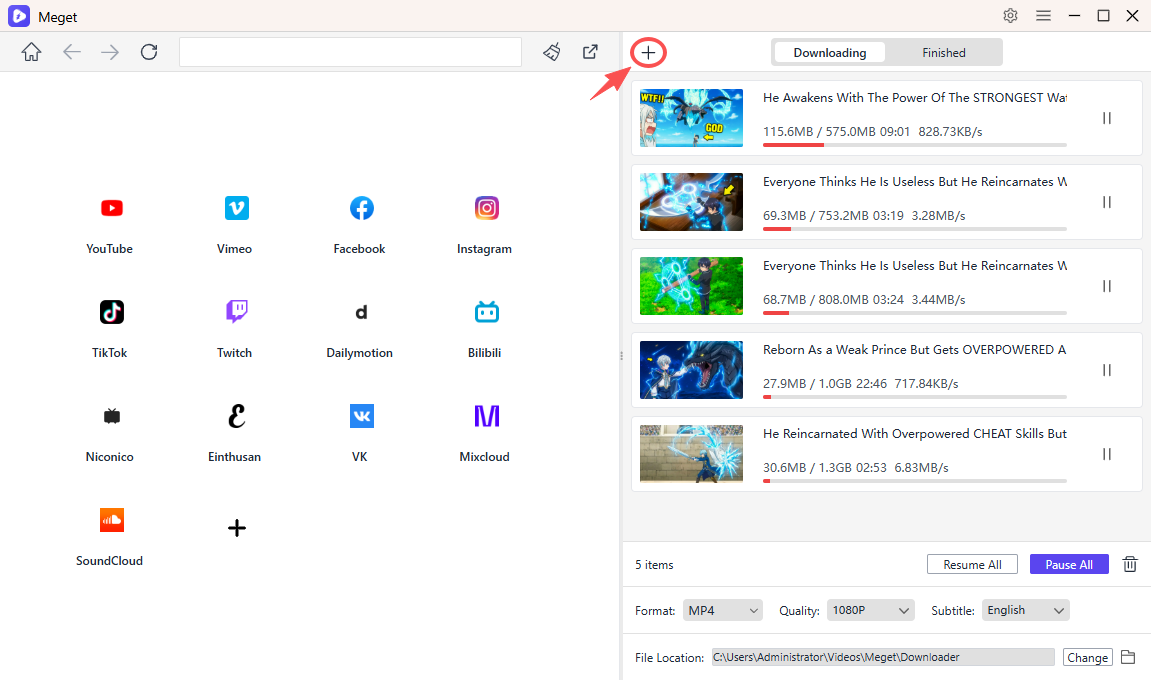
- Paste and configure: Launch Meget, select your preferred format and quality, then paste the link using “Paste URL(s) to Download.”
- Select content: If the link contains multiple videos, choose the specific items you want to save.
- Start downloading: Meget will begin processing the selected content. You can check download progress and manage active tasks directly within the application.
6. Conclusion
GenYouTube provides a simple approach to downloading YouTube videos online. Its URL-based workflow can be convenient for occasional users who want to save individual videos without installing dedicated software. The browser extension can make the process even more accessible when it is supported and available from a trustworthy source.
However, online downloaders and browser extensions may have limitations when it comes to batch downloads, format conversion, advanced controls, and long-term compatibility. If you frequently download videos or need a more complete media management solution, a dedicated application can be a better choice.
Meget is a strong alternative for users looking for an all-in-one video downloader and converter. With support for multiple platforms, high-quality downloads, batch processing, playlist downloading, and media conversion, it offers a more versatile experience than a basic online downloader. For users who want greater flexibility and a smoother workflow, Meget is worth trying.
- Is SavePanda Worth It? A Detailed Review for 2026
- yt-dlp Download Audio Only Worst Audio? Fix It With These Solutions
- Do DRM Video Downloader Extensions Really Work? Try These Alternative Tools
- How to Fix 4K Video Downloader Error Code 152-18?
- Best Video Downloader CocoCut Alternatives That You Should Try
- How to Download from Movies2Watch?
- Is SavePanda Worth It? A Detailed Review for 2026
- yt-dlp Download Audio Only Worst Audio? Fix It With These Solutions
- Do DRM Video Downloader Extensions Really Work? Try These Alternative Tools
- How to Fix 4K Video Downloader Error Code 152-18?
- Best Video Downloader CocoCut Alternatives That You Should Try
- How to Download from Movies2Watch?