How to Use EagleGet to Download Videos and Images?

Whether you’re saving videos for offline viewing, collecting images for a project, or downloading large files from the web, having a dedicated download manager can make the process faster and more reliable than relying on your browser alone. Download managers offer features such as download acceleration, pause and resume support, scheduling, and browser integration that significantly improve the downloading experience.
Among the many download managers available for Windows, EagleGIn this guide, we’ll explain what EagleGet is, show you how to use it to download videos and images, demonstrate how its browser extension works, as well as discuss its advantages and disadvantages.et has long been a popular choice thanks to its free price tag, clean interface, and support for downloading videos, images, documents, and other files from numerous websites. It integrates directly with popular web browsers and can automatically detect downloadable media while you browse.
In this guide, we’ll explain what EagleGet is, show you how to use it to download videos and images, demonstrate how its browser extension works, as well as discuss its advantages and disadvantages.
1. What Is EagleGet Downloader?
EagleGet is a free download manager for Windows designed to improve download speed, organize downloaded files, and simplify downloading media from websites. It supports multiple protocols including HTTP, HTTPS, FTP, MMS, and RTSP, while offering browser integration for Chrome, Firefox, and Microsoft Edge-compatible browsers.
Some of EagleGet’s major features include:
- Download acceleration using multi-threaded technology
- Pause and resume interrupted downloads
- Download scheduling
- Browser integration
- Automatic media detection
- Batch downloading
- Download queue management
- Malware scanning after downloads
- Support for videos, images, music, software, and documents
Unlike a standard browser downloader, EagleGet splits files into multiple segments and downloads them simultaneously, helping improve transfer speeds under many network conditions. It also remembers incomplete downloads, allowing users to continue them later after a system restart or internet interruption.
2. How to Use EagleGet to Download Videos and Images?
Using EagleGet is simple once it’s installed on your Windows PC.
- Download, install, and launch EagleGet.
- Allow EagleGet to integrate with your browser during setup, or enable it later via Tools > Options > Integration.
- Open a webpage containing the video you want to save. If EagleGet detects the media, click the download button. Alternatively, copy the video URL, click Add Download in EagleGet, paste the link, choose a save location, and start the download. Select your preferred video quality if multiple resolutions are available.
- Copy an image URL, paste it into EagleGet using Add Download, and start downloading. EagleGet can also detect multiple downloadable files on supported webpages for batch downloading.
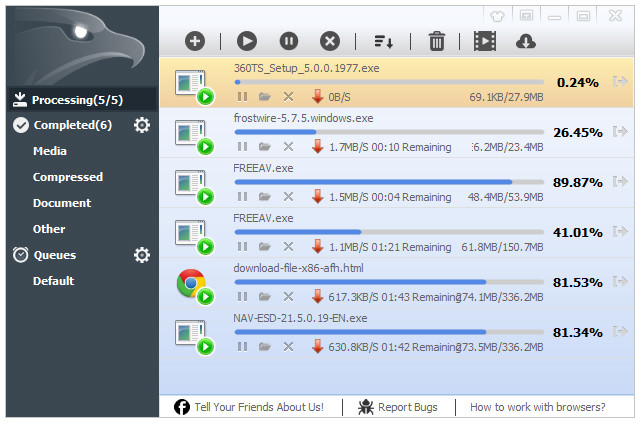
Use EagleGet to pause, resume, cancel, schedule, and organize downloads. Your download history is also saved for easy access to previously downloaded files.
3. How to Use the EagleGet Extension?
One of EagleGet’s most useful features is its browser extension, which simplifies downloading directly from supported websites.
Steps to use:
- Open EagleGet, go to Tools > Options > Integration, enable your browser, and restart it if required.
- Browse to a page containing videos or images. The extension will automatically detect downloadable media.
- Click the EagleGet download button or floating icon, choose the desired quality and save location, then click to Download.
- Monitor download progress, speed, and status within EagleGet.

4. Pros and Cons of EagleGet
Pros:
- Free and easy to use
- Supports download acceleration and resume
- Integrates with popular browsers
- Can detect downloadable videos and files automatically
- Includes download scheduling and file management
Cons:
- Available only for Windows
- Limited support for some modern streaming websites
- Basic bulk downloading capabilities
- Lacks advanced media management and organization features
- Development and updates have been infrequent in recent years
5. Try the Ultimate Video & Image Bulk Downloader – Meget Pro
If you frequently download media collections instead of individual files, Meget Pro offers a much more powerful workflow than traditional download managers.
Unlike EagleGet, which focuses primarily on general-purpose downloads, Meget Pro is designed specifically for downloading and organizing large numbers of videos and images from modern websites.
Key advantages of Meget Pro include:
- Bulk download videos and entire image galleries
- Detect full-resolution videos and images automatically
- Download from over 10,000 supported websites
- Built-in browser for accessing private or login-required content
- Filter images before downloading
- Convert videos and images into popular formats such as JPG, PNG, or WebP
Using Meget Pro is simple:
- Install and launch Meget Pro on your Windows or Mac computer.
- Open the built-in browser and navigate to the webpage containing the videos or images you want to download. Sign in if the content requires authentication.
- To download videos, locata and play a video, select your preferred resolution and format, then click Download.
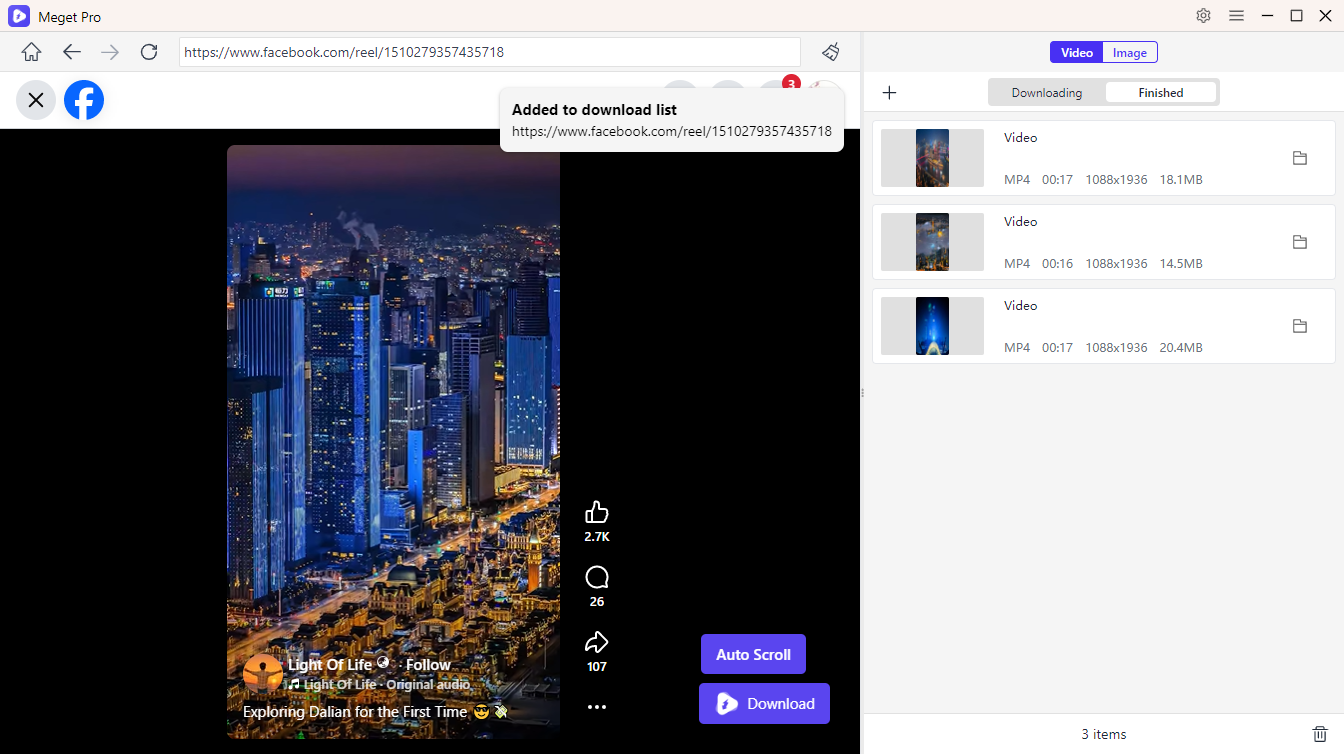
- To download images, scroll through the webpage to let Meget Pro detect all original-quality images. Preview and select the ones you want, then download them all at once.

6. Conclusion
EagleGet remains a capable free download manager for Windows users who need a simple way to download videos, images, documents, and other files. Features such as browser integration, download acceleration, scheduling, and resume support make it a noticeable improvement over standard browser downloads.
However, users who frequently download entire image galleries, video collections, or large batches of media may quickly outgrow EagleGet’s capabilities. Its limited bulk downloading features and uncertain long-term development make it less suitable for modern media-heavy workflows.
For a faster, more comprehensive solution, Meget Pro is an excellent upgrade. With powerful bulk downloading, full-resolution image extraction, built-in browser support, advanced filtering, media conversion, and support for thousands of websites, it provides a streamlined experience for managing large-scale video and image downloads. If your goal is to save time while downloading and organizing media collections, Meget Pro is the recommended choice.
- Best Video Downloader CocoCut Alternatives That You Should Try
- How to Download from Movies2Watch?
- GenYouTube Overview: A Complete Guide to Its Features and Usage
- Tuberipper Review: Is It Worth Using?
- How to Fix 4K Video Downloader Can't Find Valid Format?
- How to Fix 4K Downloader Only Doing 10 Seconds?
- The Ultimate List of the Best XDownloaders to Download X Videos