How to Use SnapAny to Download Videos and Images?

In today’s content-driven world, images and videos are everywhere—from social media feeds to online galleries and streaming platforms. Whether you’re collecting inspiration, backing up media, or saving content for offline use, having a reliable downloader is essential.
SnapAny is one of the tools many users turn to because it offers a quick and simple way to download media directly from a browser. But while it works well for small, one-off downloads, its limitations become obvious when you need to handle large numbers of images efficiently.
In this article, we’ll explore how SnapAny works, walk through its usage, evaluate its strengths and weaknesses, and introduce a more powerful alternative that makes bulk downloading and image management far more efficient.
1. What is SnapAny?
SnapAny is a web-based downloader that provides a quick way to save videos and images from many popular websites for free. It supports platforms like YouTube, TikTok, Instagram, and Facebook, making it a convenient tool for casual downloading.
The main appeal of SnapAny lies in its simplicity. You don’t need to install anything—just paste a link into the website, and it generates download options. It supports common formats such as MP4 for videos and JPG/PNG for images.
SnapAny also offers a browser extension and a desktop version, but most users rely on the web-based tool for quick tasks.
2. How to Use SnapAny to Download Videos and Images
Using SnapAny is straightforward. Below is a step-by-step guide for both videos and images.
Method 1: Using the Online Downloader
- Go to the platform (e.g., YouTube, TikTok, Instagram), find the video or image, and copy its share link.
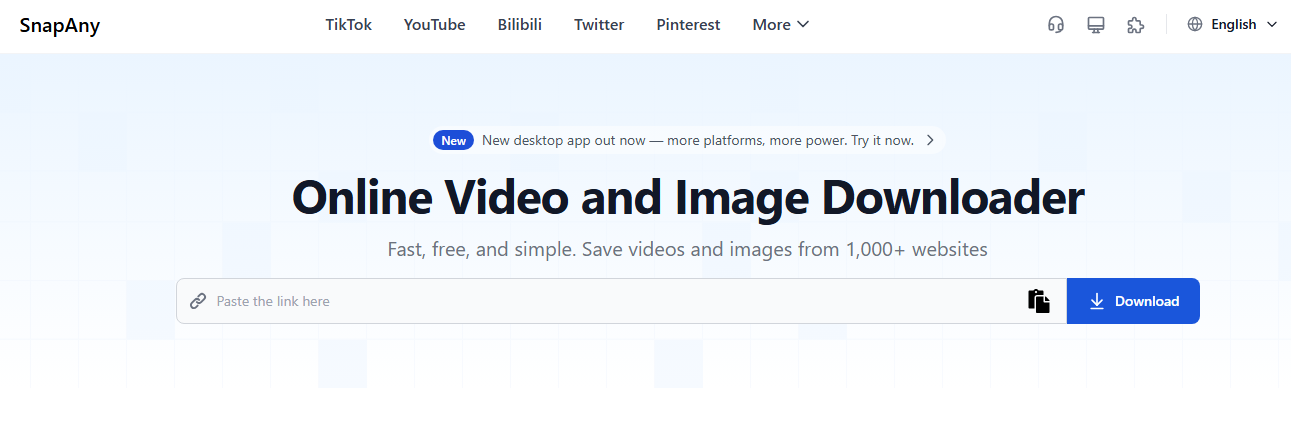
- Visit the SnapAny website in your browser and paste the copied URL into the input box on the homepage.
- SnapAny will process the link and generate available download options.
- Select your preferred format (MP4, JPG, PNG, etc.) and resolution (HD, SD).
- Hit the download button, and the file will be placed in your default download directory.
Method 2: Using the Browser Extension
In addition to its web tool, SnapAny offers a Chrome and Edge browser extension.
Steps:
- Install the SnapAny extension to your browser.
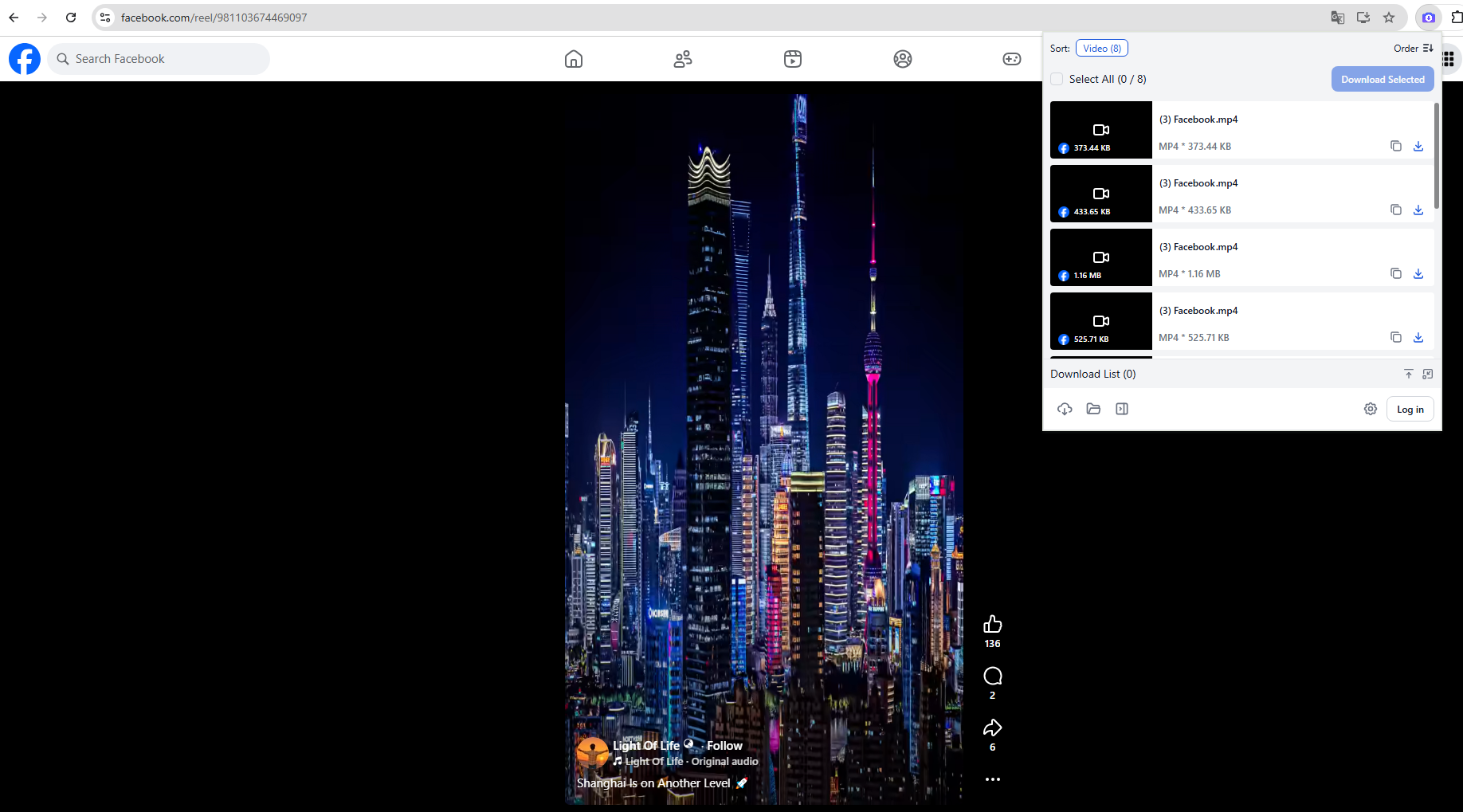
- For video downloads, locate and play the video you want to download, click the SnapAny icon and let it automatically detect media, next select and download the desired file.
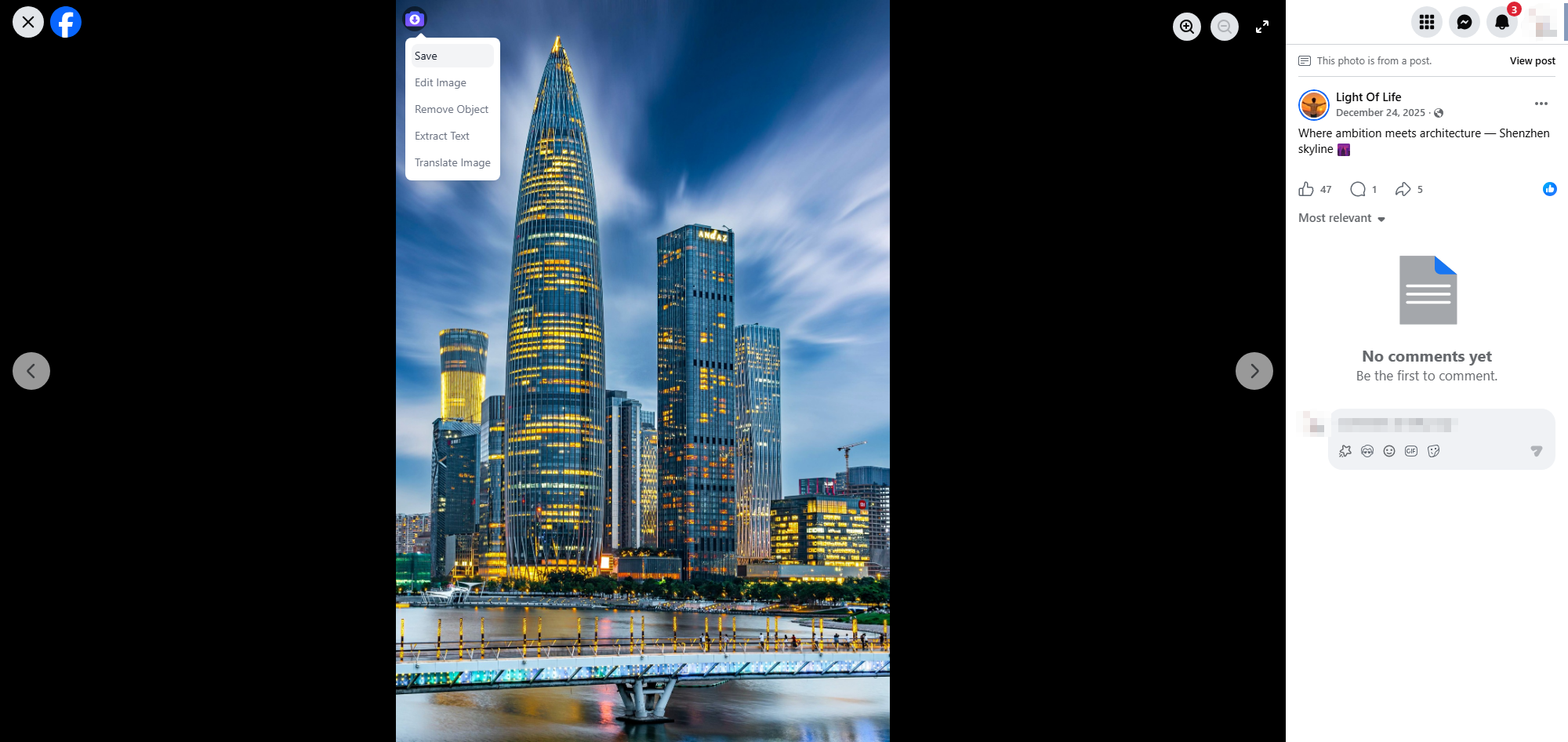
- For image downloads, open the image page, click the SnapAny icon on the page and you can choose to edit ot download it on your device.
Method 3: Using the Desktop Version
For more advanced tasks, you can use SnapAny’s desktop app.
Steps:
- Download and install the SnapAny desktop version.
- Paste media links or load pages inside the software.
- Select multiple files (videos, audio or images), choose formats and start downloading.
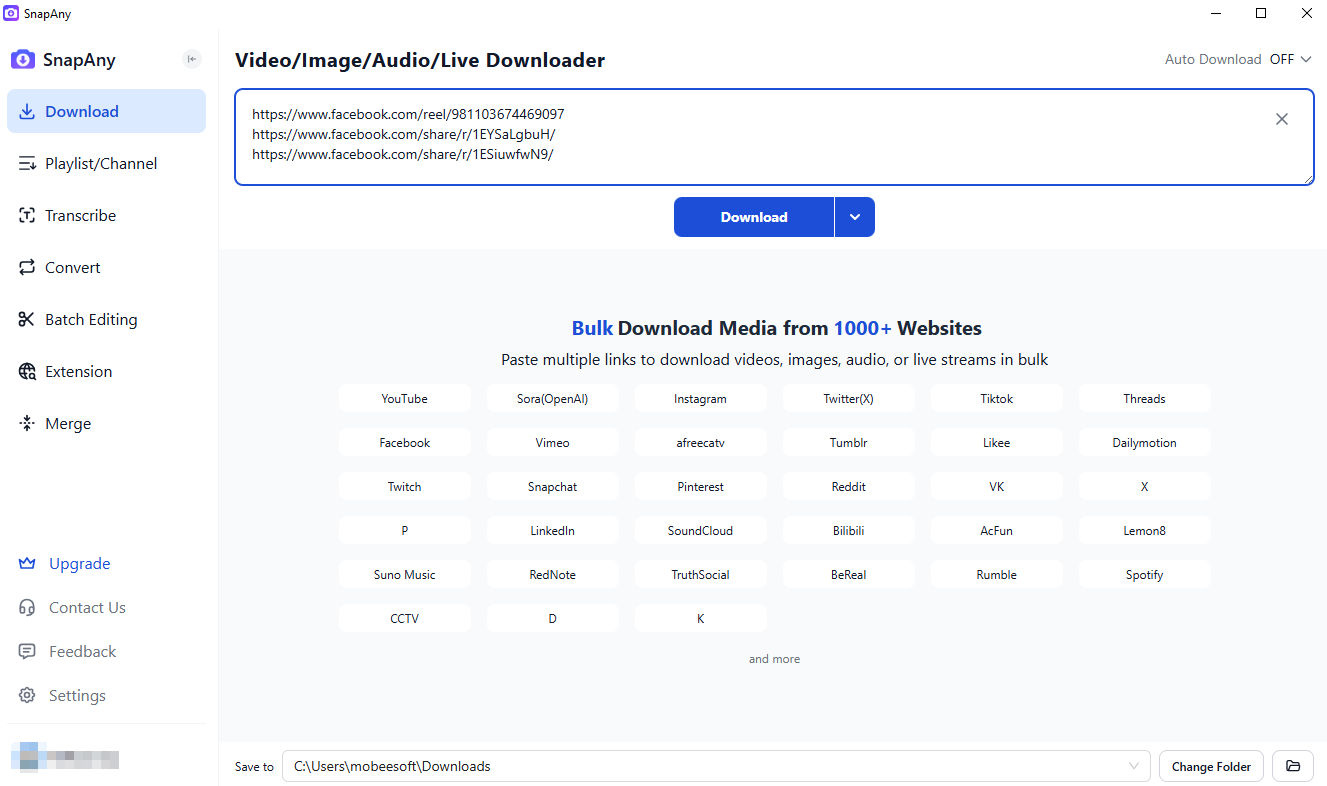
The desktop version also supports:
- Media conversion
- Audio & video transcription
- Audio and subtitles merging
- Basic video editing
3. Pros and Cons of SnapAny
Pros:
- Multiple versions: Available as an online downloader, desktop app, and browser extension
- Wide compatibility: Works with 1,000+ websites
- All-in-one support: Downloads videos, audio, and images
- Easy to use: Simple link paste or one-click detection
Cons
- Requires signup to access all the SnapAny features
- Limited batch image downloading; No preview or filtering for images
- All features limited to premium users
- May not work on restricted sites
4. Try Meget Pro Instead of SnapAny
If SnapAny feels limiting – especially when dealing with large image collections – Meget Pro offers a much more efficient and professional solution. Meget Pro is built to handle both videos and images in bulk, making it a much more powerful and time-saving solution.
Key features of Meget Pro:
- Supports 10,000+ websites, far exceeding SnapAny’s coverage
- Bulk download videos and images simultaneously with no manual repetition
- Advanced filtering options: sort images by type, resolution, size, or format
- Wide format support: download media in MP4, MP3, PNG, and other popular formats
- Built-in browser for accessing, detecting, and previewing even premium content
How to use Meget Pro:
- Download and install Meget Pro on your device by following the setup instructions for your operating system.
- Open Meget Pro and load the webpage that includes the media you want to download.
- For video downloads, play the desired video, choose your preferred resolution and format, then click the “Download” button to start saving it.
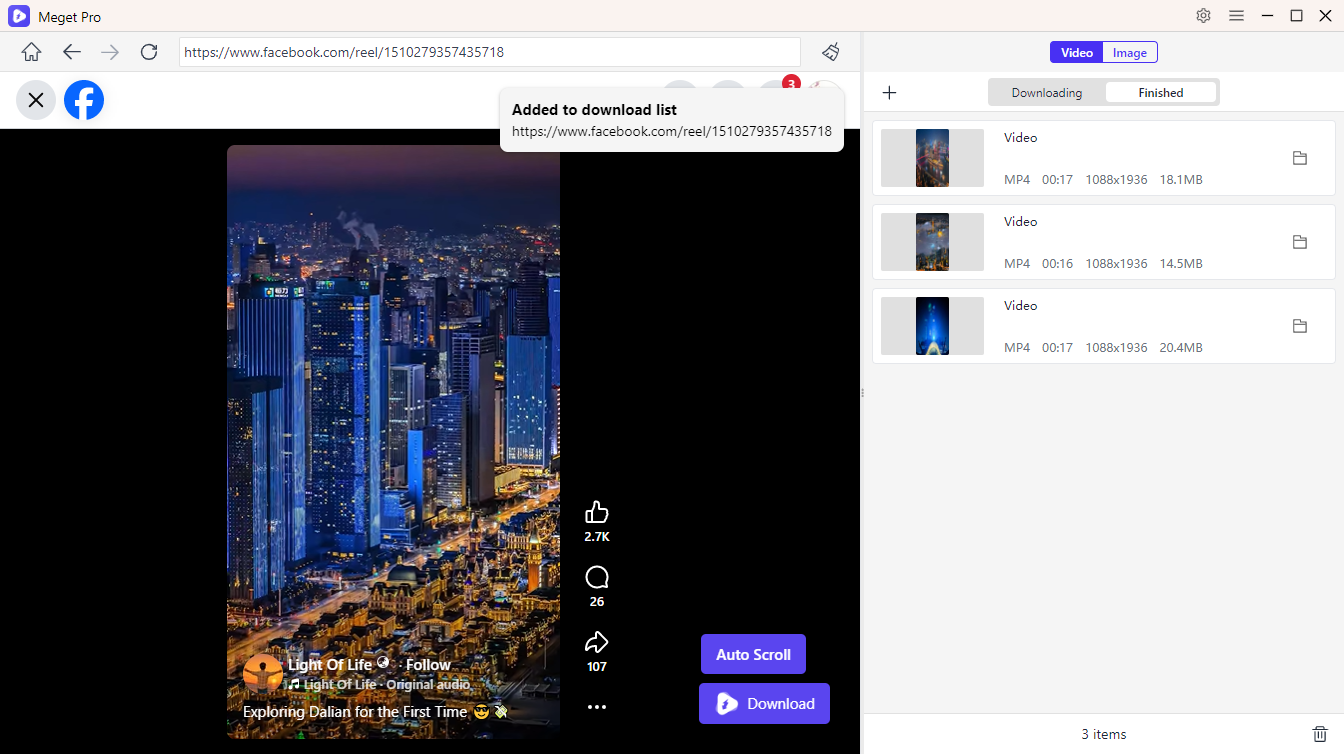
- To download images, click the “Auto Click” button. Meget Pro will automatically detect all images in their original quality, allowing you to preview and filter your preferred photos before downloading them in bulk.

5. Conclusion
SnapAny is a solid choice for users who want a quick, no-fuss way to download videos or a few images from popular websites. Its simple interface, multiple access options (online, extension, and desktop), and broad compatibility make it ideal for casual, one-time downloads.
However, as your needs grow—especially when dealing with large image collections or multiple media files—its limitations become clear. The lack of efficient batch image downloading, preview, and filtering can make the process slow and repetitive.
That’s where Meget Pro stands out. With true bulk downloading for both videos and images, advanced filtering options, and a built-in browser for seamless detection and preview, it transforms a manual task into a fast and streamlined workflow.
In short, if you only need occasional downloads, SnapAny is sufficient. But for anyone who values speed, efficiency, and full control over large-scale media downloads, Meget Pro is the smarter and more powerful choice.
- yt-dlp Download Audio Only Worst Audio? Fix It With These Solutions
- Do DRM Video Downloader Extensions Really Work? Try These Alternative Tools
- How to Fix 4K Video Downloader Error Code 152-18?
- Best Video Downloader CocoCut Alternatives That You Should Try
- How to Download from Movies2Watch?
- GenYouTube Overview: A Complete Guide to Its Features and Usage
- yt-dlp Download Audio Only Worst Audio? Fix It With These Solutions
- Do DRM Video Downloader Extensions Really Work? Try These Alternative Tools
- How to Fix 4K Video Downloader Error Code 152-18?
- Best Video Downloader CocoCut Alternatives That You Should Try
- How to Download from Movies2Watch?
- GenYouTube Overview: A Complete Guide to Its Features and Usage
- Tuberipper Review: Is It Worth Using?